Social media workflow
How to Crop Images for Social Media Without Losing Important Details
Social platforms display the same image differently in feeds, grids, previews, stories, and profile pages. A crop that looks correct in the editor can lose text, a face, or a logo after the platform adds buttons or creates a thumbnail. This guide focuses on destination-aware cropping, safe areas, and a practical export workflow for publishing one photograph across multiple layouts.
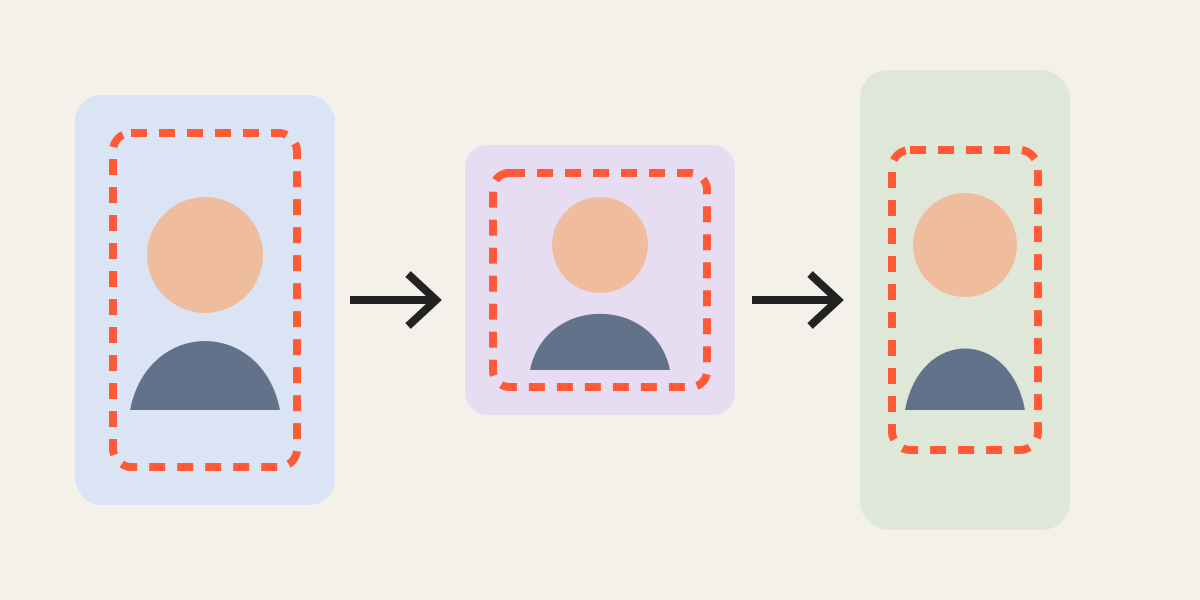
1. Map the placements before cropping
List where the image will appear: feed post, profile grid, story, reel cover, thumbnail, link preview, or paid advertisement. Each placement may use a different ratio or crop. One universal file often creates unpredictable automatic trimming.
Prioritize the placement that matters most, then prepare secondary versions. For example, a 4:5 feed image can be accompanied by a 1:1 grid-safe version and a 9:16 story version.
2. Separate ratio from safe area
The crop ratio controls the outer shape, but the safe area controls where important content should remain. User-interface elements, captions, profile icons, and navigation controls can overlap the top, bottom, or sides of a vertical image.
Keep faces, product names, prices, and calls to action toward the central area. Decorative background can extend closer to the edges because losing a small part of it does not change the message.
3. Protect text and logos
Text near the border is vulnerable to automatic cropping and small-screen display. Leave generous padding around titles, subtitles, and logos. Do not rely on a one-pixel boundary that only looks safe on a desktop monitor.
If text is already embedded in the image, create a test export and view it on a phone. Small type can become unreadable even when it is technically inside the crop.
4. Build a multi-format set from one source
Load the same photograph as several layers or repeat the workflow using the original. Create a portrait crop for the feed, a square crop for the grid, and a vertical crop for stories. Reposition the subject for each format instead of merely cutting the center.
When a group portrait does not fit 9:16, consider using a wider background treatment rather than enlarging until people are cut off. The purpose is to preserve meaning, not force every image into the tightest possible frame.
5. Maintain visual consistency across a campaign
For a series of posts, define repeatable rules: eye height, product baseline, background margin, logo position, and output dimensions. Use a reference layer to compare each new image. Consistency makes a campaign look planned even when source photos were taken at different times.
Do not make every subject exactly the same size if that would misrepresent a product or create awkward portrait crops. Consistency should support clarity, not erase meaningful differences.
6. Verify after upload
Platforms can change previews, compress files, or use a different crop in the profile grid. Upload a draft or private test when possible and inspect the real interface on a phone. Check both portrait and landscape orientation.
Keep the high-quality exported files and the originals. If a platform changes its layout later, you can create a new crop without downloading and recompressing an already published image.
Frequently asked questions
Can one image size work everywhere?
It can work, but important placements usually benefit from separate crops because feeds, grids, stories, and thumbnails use different shapes.
Where should text be placed?
Keep essential text and logos away from the outer edges and test the actual mobile preview.
Should I enlarge a group photo to fill 9:16?
Only if everyone remains comfortably inside the frame. Preserving people is more important than filling every edge.
Overlay image crop editor
Upload your original and edited photos, lower the top image opacity, then align facial features or fixed background points. Every exported image uses the same crop ratio and pixel dimensions.
Start cropping