Mobile performance
How to Crop Large Images on a Mobile Browser Without Crashes
Modern phone cameras create very large files, but a mobile browser has limited memory. Loading several high-resolution images, decoding them, drawing them on a canvas, and exporting large results can exceed that limit. This guide explains a practical workflow for cropping large images on mobile while reducing freezes, blank canvases, failed downloads, and unnecessary battery use.
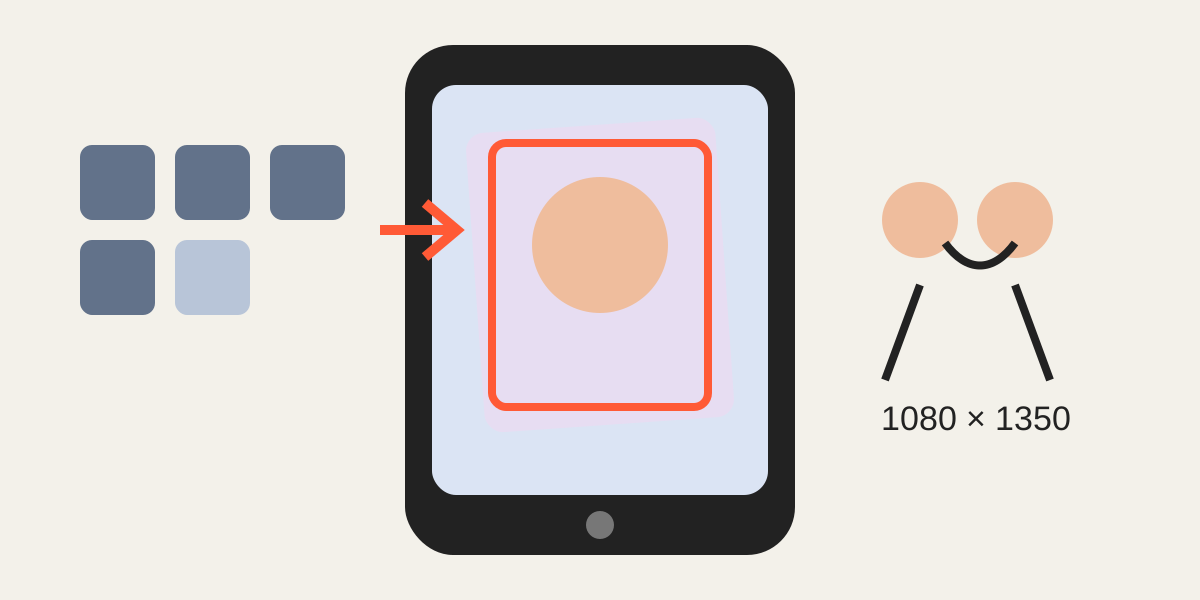
1. Why large images stress a browser
A compressed photo may occupy only a few megabytes on disk but require much more memory after decoding. A 12-megapixel image contains millions of pixels, and several layers can multiply the memory demand. Canvas export creates additional temporary copies.
This is why a phone can display one photo normally but struggle when five large images are loaded into an editor at the same time.
2. Start with a smaller working set
If the task does not require five layers, load two or three. Complete and export one comparison before starting another. Close unrelated browser tabs and background applications when the device is already under memory pressure.
Use the original files, but avoid adding duplicates merely to test different crops. Make one intentional version at a time.
3. Choose realistic output dimensions
A social post does not need the full camera resolution. Select dimensions that match the final display or publishing requirement. Smaller outputs reduce export time, memory use, and file size while preserving enough visible detail.
Do not confuse output dimensions with source quality. Exporting at an extremely large size does not add detail and may increase the chance of failure.
4. Use touch gestures deliberately
Move the active layer with one finger and pinch with two fingers to zoom. Begin with moderate movements. Rapid repeated pinches can trigger many redraws and feel less precise on an older device.
Lock layers that are already aligned. This prevents accidental movement and reduces the need to repeat a heavy editing step.
5. Export safely
Export one selected image first to confirm that the browser can complete the chosen dimensions. Then use ZIP export for the full set if needed. Wait for the download to finish before switching apps or locking the screen.
Confirm that the file appears in the device download folder or photo workflow. Mobile browsers handle downloaded ZIP files differently, so individual export may be simpler for small sets.
6. Recover from a failed session
If the canvas becomes blank or the browser closes, reopen the page and use fewer images or smaller output dimensions. A crash does not mean the original photos were damaged because editing occurs on temporary browser data.
For repeated professional work, a desktop browser may be more reliable for very large sets. Mobile is convenient, but device memory remains a real technical limit.
Frequently asked questions
Why does a small JPEG use so much memory?
Compressed file size and decoded pixel memory are different. The browser must expand the image before drawing it.
Should I lower the camera resolution first?
Not necessarily. Keep the original, but choose practical export dimensions and load fewer images at once.
Why did a ZIP download fail on my phone?
The export may require more memory or the browser may handle ZIP files differently. Try individual exports or a smaller set.
Overlay image crop editor
Upload your original and edited photos, lower the top image opacity, then align facial features or fixed background points. Every exported image uses the same crop ratio and pixel dimensions.
Start cropping