Multi-image workflow
How to Crop Multiple Images to the Same Size
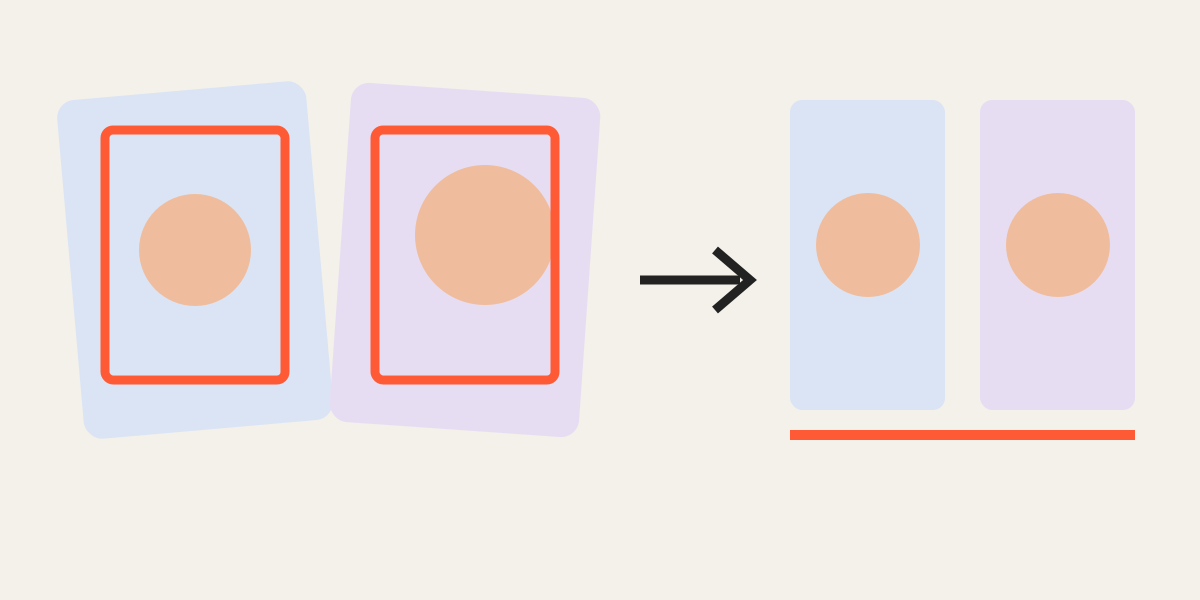
A batch crop that uses identical source coordinates works only when every photograph was captured from the same camera position. Overlay Crop uses a different method: one shared output frame with independent movement and zoom for each image. This produces consistent dimensions without forcing different subjects into the wrong position.
1. Understand the difference between same size and same crop
“Same size” means that every exported file has identical width and height. “Same crop coordinates” means cutting the same location from every original. Those are not the same operation.
When subjects appear in different places, identical coordinates produce inconsistent results. A shared output frame lets each source move independently while the final files remain identical.
2. Choose a reference image
Pick the clearest or most important image as the reference. Position it first and decide the ideal subject scale, headroom, side margins, and background balance. Lock the layer when it looks correct.
The reference is a visual rule for the remaining images, not merely the first file in the list. For portraits, use the eye line and chin spacing. For products, use the object center, baseline, and visible margin.
3. Align each remaining layer
Select the next image, lower its opacity, and move or zoom it until the important landmarks overlap the reference. Repeat for each layer. Up to five images can be prepared in one session.
If a source has a different perspective, perfect overlap may be impossible. Prioritize the part viewers will compare, such as the face, product body, or room outline.
4. Use a repeatable quality checklist
Review every layer separately before export. Consistency should be visible in the subject as well as the file dimensions.
- Similar subject scale
- Similar top and side margins
- No accidental clipping
- Correct rotation
- Acceptable sharpness
- 100% opacity during final review
5. Pick output dimensions based on the smallest source
The smallest or most heavily cropped source is the limiting file. If one image contains only 700 visible pixels across the crop, exporting all images at 3000 pixels does not make that layer genuinely detailed.
Choose an output that all layers can support. For web sets, consistency and clean composition usually matter more than extremely large dimensions.
6. Export and use the set
Download the images individually or as a ZIP. Because every file has matching dimensions, the set can be used in carousels, before-and-after sliders, product grids, staff directories, progress tracking, and video transitions without layout jumps.
| Project | What to match first | Common output |
|---|---|---|
| Portrait set | Eyes and face scale | 1:1 or 4:5 |
| Product catalog | Object center and baseline | 1:1 or 4:5 |
| Room comparison | Corners and horizon | 4:3 or 16:9 |
| Vertical progress video | Main subject center | 9:16 |
Frequently asked questions
Can the originals have different resolutions?
Yes. Each layer can be moved and scaled independently, while all exported files use the selected dimensions.
Should every layer use the same zoom value?
No. Different source framing often requires different zoom values. The visual result should match, not the numeric value.
How many images can I prepare together?
Up to five images in one editing session.
Can I download the whole set at once?
Yes. Use the ZIP export after checking every layer.
Overlay image crop editor
Upload your original and edited photos, lower the top image opacity, then align facial features or fixed background points. Every exported image uses the same crop ratio and pixel dimensions.
Start cropping