Before and after
How to Align Before and After Photos Accurately
Before-and-after images are credible and easy to compare only when the framing is reasonably consistent. Alignment does not mean hiding real differences. It means reducing accidental changes in crop, scale, and position so viewers can focus on the intended edit, restoration, renovation, or progress.
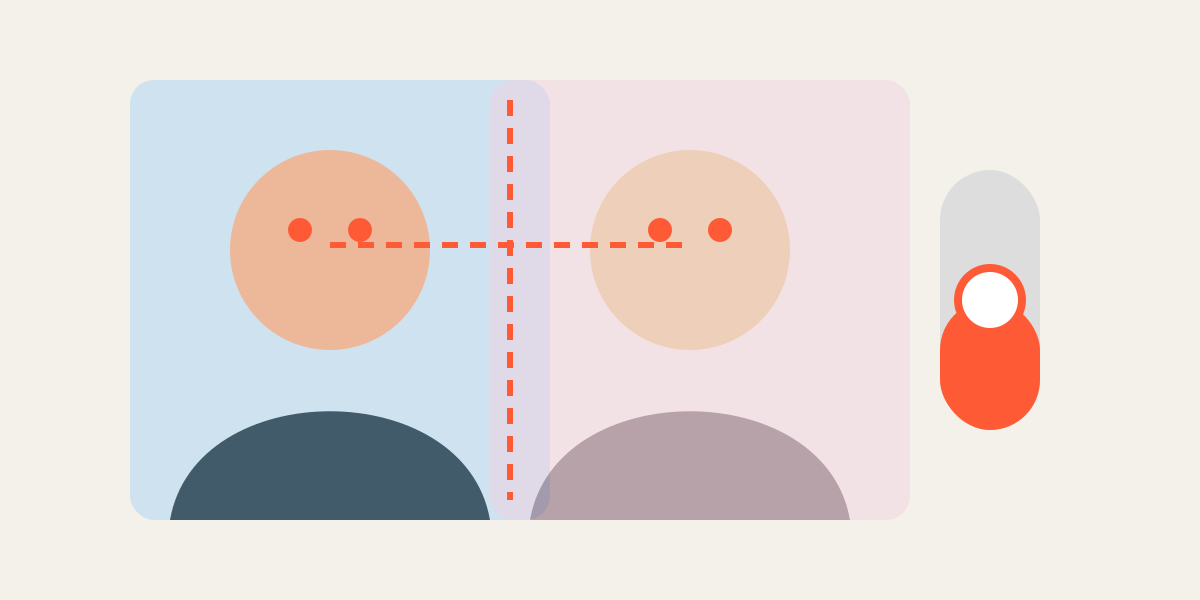
1. Choose a trustworthy reference
Use the original, earliest, or least altered photo as the fixed reference. Place it first and lock it. If the camera positions differ, decide which area matters most to the comparison and state the limitation when context is important.
2. Lower the upper layer opacity
Set the comparison layer to roughly 40–60% opacity. Doubled edges immediately show whether the second image is too large, too small, or shifted. High-contrast images may need lower opacity; dark images may need more.
3. Match scale before position
First compare a measurable feature: the distance between eyes, width of a product, door frame, or room corner. Change zoom until the feature has the same apparent size. Only then move the image horizontally and vertically.
Trying to fix position before scale leads to repeated corrections because every zoom change also alters alignment.
4. Prioritize stable landmarks
Choose points unlikely to have changed because of the edit. For a portrait, use eyes, nose bridge, ear position, or shoulders. For a room, use walls and windows rather than movable furniture. For a product, use hard edges rather than flexible packaging.
- Use at least two reference points.
- Prefer structural features over temporary details.
- Accept small differences caused by lens perspective or posture.
5. Keep the comparison honest
Avoid zooming one image more tightly simply to make a result appear larger or more dramatic. Preserve similar field of view and subject scale. If the before and after were captured in different lighting or positions, do not imply that alignment removes those differences.
Transparent alignment is a preparation tool, not a substitute for accurate captions and context.
6. Test the final transition
Return both layers to full opacity and switch visibility on and off. If the subject appears to pulse, revisit scale. If it slides, revisit position. Export equal dimensions and test the result in the actual slider, carousel, or video.
| Visible problem | Likely cause | Best correction |
|---|---|---|
| Subject grows or shrinks | Scale mismatch | Adjust zoom |
| Subject slides sideways | Position mismatch | Move the layer |
| Edges never align | Perspective or pose changed | Prioritize the comparison area |
| Transition looks soft | Source crop too small | Reduce output size or zoom |
Frequently asked questions
What opacity is best?
About 50% is a useful starting point, but adjust it so both layers remain visible.
Can photos from different cameras be aligned?
Often yes, but lens and perspective differences may prevent perfect overlap.
Should I rotate an image during alignment?
Use small rotation corrections when a horizon or head tilt differs because of camera orientation, but do not distort the subject to force a false match.
Can I align more than two dates?
Yes. Use one reference and align each additional layer to it.
Overlay image crop editor
Upload your original and edited photos, lower the top image opacity, then align facial features or fixed background points. Every exported image uses the same crop ratio and pixel dimensions.
Start cropping