Video preparation
How to Prepare Photos for a Before-and-After Video
A before-and-after video looks polished when the subject remains visually stationary and only the intended change appears. Most “shaking” transitions are caused by inconsistent crop, scale, or output dimensions before the images reach the video editor.
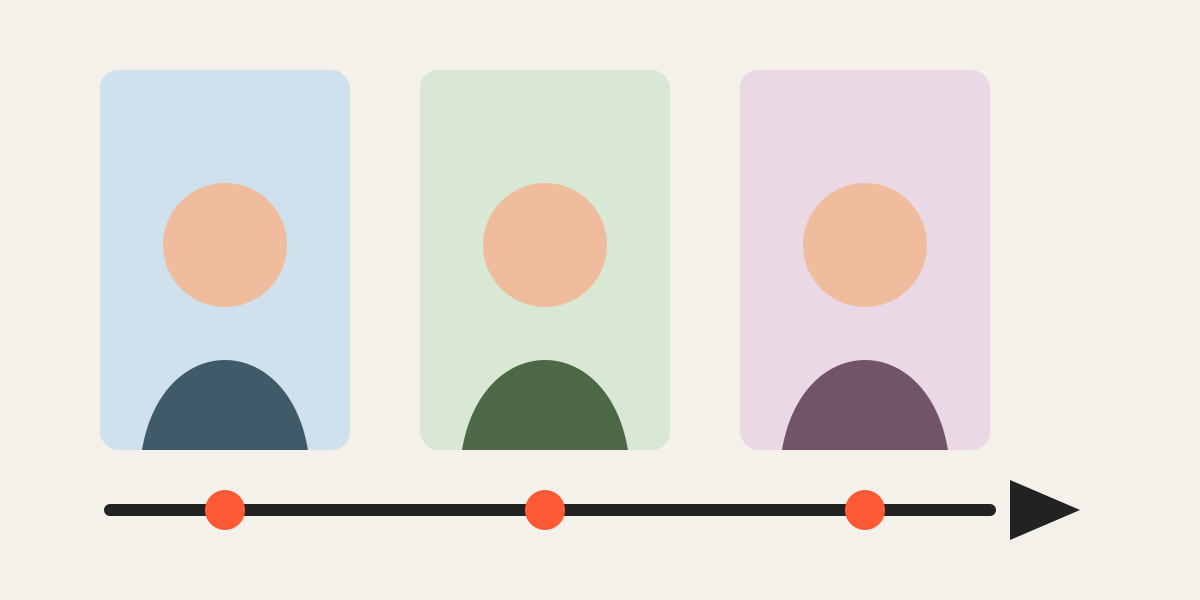
1. Choose the final video canvas
Use 9:16 for a full vertical screen, 16:9 for wide video, or 1:1 for a square presentation. Set the crop frame to the same ratio before aligning any image.
Leave safety space near the edges because video interfaces, captions, and controls can cover content.
2. Pick a master reference frame
Choose the clearest frame or the frame that best represents the desired final composition. Position and lock it. Align every other date or version to this same master rather than aligning each image only to the previous one.
3. Match scale and center
Lower opacity and align the main subject. For portraits, use the eyes and shoulders. For renovations, use walls and openings. For products, use the object outline and baseline.
A consistent subject center prevents the image from drifting during a fade.
4. Export identical dimensions
Video editors may automatically scale images with different dimensions. Exporting every frame at the exact same width and height prevents hidden auto-fit behavior and makes timing easier.
5. Test a two-frame crossfade
Before editing a long sequence, place the first and last images in the timeline and add a short dissolve. If the subject grows, correct zoom. If it slides, correct position. If the frame rotates, correct angle.
| Transition symptom | Correction |
|---|---|
| Pulsing or breathing | Match scale |
| Sliding left or right | Match horizontal position |
| Jumping up or down | Match vertical position |
| Soft frame | Use a smaller output or less zoom |
| Important content covered | Increase safe margins |
6. Keep the narrative accurate
Use consistent captions and dates. Avoid crops that exaggerate change, and disclose when the camera, lighting, or pose changed significantly. Visual polish should improve clarity, not alter the meaning of the comparison.
Frequently asked questions
What ratio is best for a reel?
A 9:16 canvas is commonly used for full-screen vertical video, but verify the current requirements of the platform where you will publish.
Should I align each image to the previous image?
Use one master reference for the whole sequence to avoid cumulative drift.
Why does my video editor still zoom the images?
Check project settings and disable automatic pan-and-zoom effects. Also confirm all files have identical dimensions.
Can I prepare more than two frames?
Yes. Align up to five frames in one session and repeat with the same reference if you have more.
Overlay image crop editor
Upload your original and edited photos, lower the top image opacity, then align facial features or fixed background points. Every exported image uses the same crop ratio and pixel dimensions.
Start cropping