Privacy and processing
How to Crop Photos Without Uploading Them to a Server
“No upload” should be explained precisely. In Overlay Crop, the selected image files are decoded, transformed, and exported in the browser. They are not sent to the Overlay Crop editing server. The website itself still uses normal network requests to load code, fonts, security services, and—when enabled with consent—analytics or advertising.
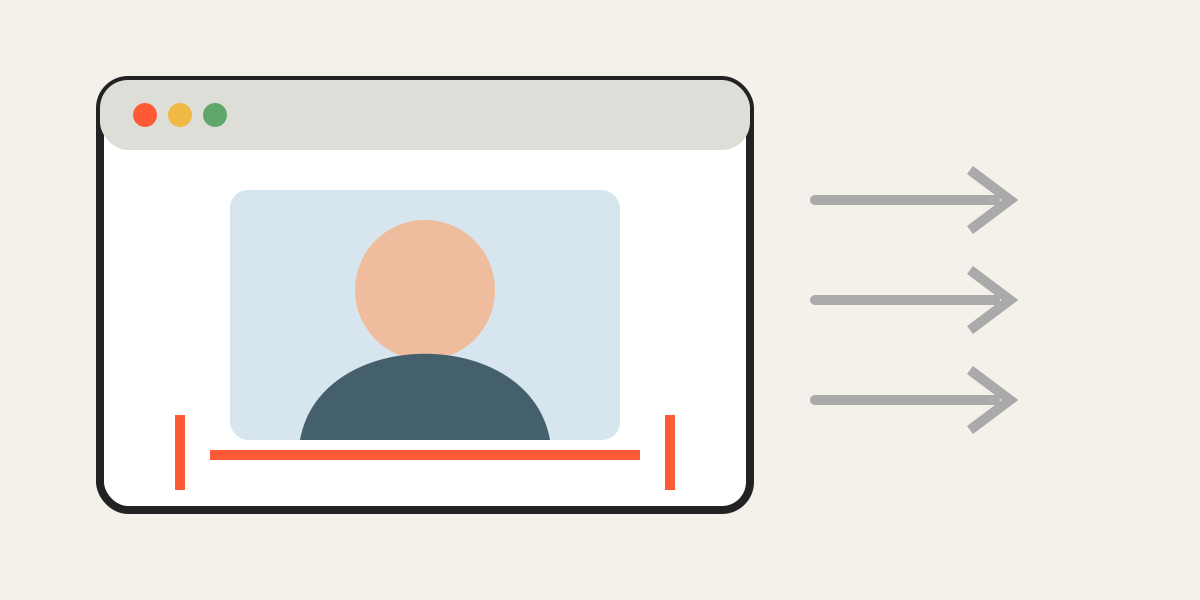
1. What local browser processing means
When you select a file, the browser grants the page temporary access to that file for the current session. JavaScript and Canvas APIs read the image in memory, apply the position and crop, and create a new downloadable file.
The selected image is not submitted through an upload form to the Overlay Crop server.
2. What still travels over the network
The page itself must be downloaded. Hosting and security providers may receive an IP address, browser information, requested URL, time, and diagnostic details. If analytics or advertising is later enabled, those services may process additional identifiers according to consent and applicable law.
This technical website data is different from uploading the photograph being edited.
3. How to verify the behavior
Open browser developer tools and watch the Network panel while selecting and editing an image. You should see page resources and ordinary service requests, but not an upload containing the selected photo.
You can also load the editor, disconnect from the network, and continue a local editing session, although a refreshed page may need the network again.
4. Good privacy habits
Local processing reduces unnecessary transfer, but it does not replace good device security.
- Use a device and browser you trust.
- Avoid sensitive work on shared or public computers.
- Close the tab after finishing.
- Keep originals in secure storage.
- Review the privacy policy and cookie settings.
5. Browser memory and session limits
Large images consume device memory. A mobile browser may reload the tab if several high-resolution files are opened at once. This is a device limitation, not a server upload. Work with fewer files or smaller copies if the browser becomes unstable.
6. When a desktop application may be better
Use a vetted offline desktop application when the material is subject to strict organizational, medical, legal, or contractual controls. Confirm your own compliance obligations before using any web tool, even one that processes files locally.
Frequently asked questions
Are my selected photos stored by Overlay Crop?
No. The selected editing files are processed in the browser and are not stored on the Overlay Crop server.
Does “no upload” mean no network activity at all?
No. The website still loads over the internet and hosting, consent, analytics, or advertising services may receive ordinary website data.
Can I verify that my photo is not uploaded?
Yes. Inspect browser network requests or continue editing after disconnecting once the page has loaded.
Is local processing suitable for every confidential workflow?
Not necessarily. Follow your organization’s security and compliance requirements.
Overlay image crop editor
Upload your original and edited photos, lower the top image opacity, then align facial features or fixed background points. Every exported image uses the same crop ratio and pixel dimensions.
Start cropping