Troubleshooting
Image Crop Quality Troubleshooting Guide
When a crop does not look right, the cause is usually one of five things: too few visible source pixels, excessive zoom, incorrect output expectations, orientation metadata, or device memory limits. Use this diagnostic guide before repeating the entire edit.
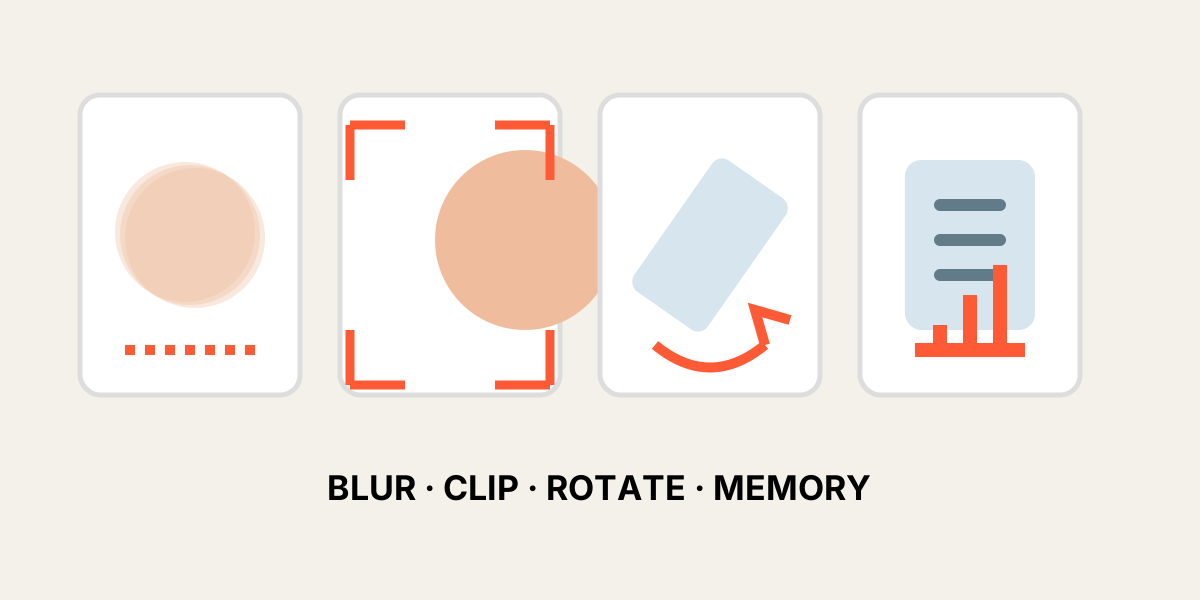
1. The exported image looks blurry
A tight crop may use only a small part of the original. Exporting that crop at a large size stretches limited detail. Reduce zoom, choose a smaller output, or start with a higher-resolution source.
Also inspect the original at 100%. Motion blur, missed focus, and heavy compression cannot be corrected by changing the crop settings.
2. The subject is clipped after download
Check the actual downloaded file, not only the editor preview. Restore opacity, review every edge, and leave a small safety margin. Very tight crops are more vulnerable when used by platforms that add their own masks or previews.
3. A phone photo appears rotated
Some phone images store orientation as metadata. Modern browsers usually respect it, but converted or older files may behave differently. Re-save the source with the correct orientation or use the rotation control before export.
4. Transparent areas look different
PNG and WebP can contain transparency. The editor checkerboard or canvas background may differ from the final page where the image is used. Test the download over the intended background color.
5. The browser becomes slow or reloads
High-resolution images require substantial memory, especially when five layers are decoded at once. Close other tabs, use fewer layers, create smaller working copies, or move to a desktop browser.
A 6000 × 4000 image contains 24 million pixels before additional canvas copies are created.
6. Layers do not align perfectly
Perspective, lens distortion, camera distance, pose, and flexible objects can prevent perfect overlap. Align the area that matters most and avoid forcing unrelated edges to match.
7. Exported colors look slightly different
Color profiles and browser color management can affect appearance. For critical print or brand workflows, convert sources to a known color space and verify in a color-managed application.
8. Quick diagnostic table
Use the symptom to choose the first correction instead of changing every setting at once.
| Symptom | First check | Possible fix |
|---|---|---|
| Soft export | Visible source pixels | Reduce output or zoom |
| Clipped edge | Final crop boundary | Add margin |
| Wrong rotation | Source orientation | Rotate or re-save |
| Tab reloads | Device memory | Use smaller files |
| Cannot align all edges | Perspective | Prioritize main subject |
| Unexpected background | Transparency | Test on final background |
Frequently asked questions
Why is the preview sharp but the export soft?
The preview may be displayed smaller than the exported file. Judge sharpness at 100% output size.
Can the tool improve a low-resolution source?
It can resize the file, but it cannot recover genuine detail that is absent.
Why does mobile fail with several camera photos?
The browser may run out of memory while decoding multiple high-resolution images.
Should I use PNG or JPG?
Use PNG or WebP when transparency is needed. JPG is often smaller for photographs without transparency.
Overlay image crop editor
Upload your original and edited photos, lower the top image opacity, then align facial features or fixed background points. Every exported image uses the same crop ratio and pixel dimensions.
Start cropping