Portrait composition
How to Crop Portrait Photos Without Cutting Off the Subject
Portrait cropping is more than placing a face in the center. A careless crop can cut hair, hands, elbows, clothing, or visual context in a way that makes the photograph feel accidental. This guide explains a repeatable method for choosing safe boundaries, controlling headroom, and adapting one portrait to square, vertical, and wide formats without weakening the subject.
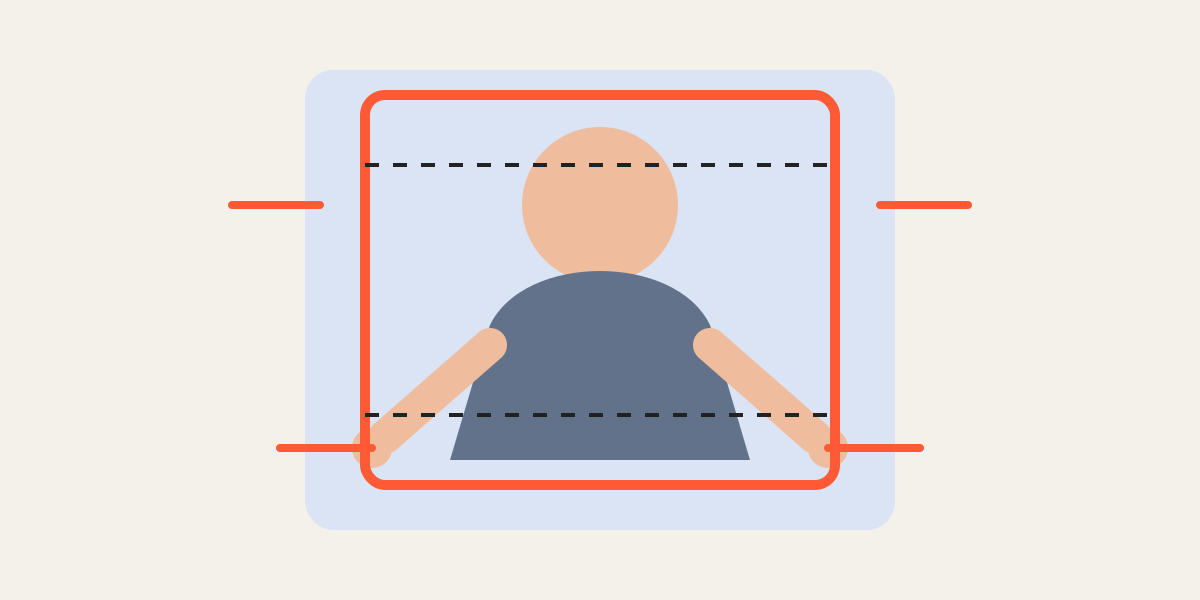
1. Identify what the portrait must communicate
A professional headshot, family portrait, fashion image, and social profile photo do not need the same amount of body or background. Decide whether the image should emphasize expression, clothing, posture, environment, or a relationship between people. That decision determines which edges are safe to remove.
For a headshot, the eye line and facial expression are usually the priority. For a full-length portrait, hands, feet, and the silhouette matter more. For an environmental portrait, removing too much background can erase the place that gives the image meaning.
2. Set the destination ratio first
Choose 1:1, 4:5, 3:4, 9:16, or a custom ratio before fine positioning. A portrait that looks balanced in 3:4 may feel cramped in a square. Setting the ratio first prevents you from perfecting a composition that cannot survive the final format.
If the same portrait will be used in several places, create separate exports rather than stretching one crop everywhere. Keep a generous master crop and make destination-specific versions from the original file.
3. Protect anatomical and visual boundaries
Avoid cutting exactly through wrists, elbows, knees, ankles, fingertips, or the top of the head unless the composition is intentionally close. A crop slightly above or below a joint usually looks more deliberate. Also watch for glasses, hats, veils, bouquets, and loose clothing that extend beyond the body outline.
When several people are present, check every face and hand, not only the central subject. A clean crop should feel intentional across all four edges.
4. Use headroom as a design choice
Too much empty space above the head can make the subject look low in the frame, while too little can feel crowded. Match headroom to the purpose: tighter for a profile image, more generous for editorial or family photography.
Do not judge headroom only by distance. Consider hair volume, hats, and the direction of the gaze. If the person looks to one side, leaving more space in that direction often creates a calmer composition.
5. Match several portraits consistently
When preparing a staff directory, before-and-after set, or family sequence, choose one reference image. Align eye height, face size, shoulder position, and headroom instead of copying identical zoom numbers. Different source distances require different scale values.
Lower the upper layer opacity to compare landmarks, then restore full opacity and inspect each image alone. Alignment should improve consistency without forcing every person into an unnatural crop.
6. Review at final size
A crop that looks comfortable on a large editing canvas may feel too tight as a small avatar. Download a test file and view it at the size used by the website or app. Confirm that facial features remain clear and that important edges are not hidden by circular profile masks or interface overlays.
Keep the original photograph unchanged. Export separate versions with descriptive filenames so that future layouts can be created without repeatedly recompressing the same crop.
Frequently asked questions
Should the top of the head always remain visible?
Not always. A deliberate close crop can trim hair, but the cut should support the composition rather than look accidental.
What ratio works best for portraits?
4:5 and 3:4 are flexible for vertical portraits, while 1:1 is useful for profile images. The destination should decide the ratio.
How can I match several headshots?
Use one reference layer and align eye height, face scale, shoulders, and headroom for each photo.
Overlay image crop editor
Upload your original and edited photos, lower the top image opacity, then align facial features or fixed background points. Every exported image uses the same crop ratio and pixel dimensions.
Start cropping