Transparent images
How to Crop Transparent PNG Images Without Losing Clean Edges
Transparent PNG files behave differently from ordinary photographs. Empty pixels are part of the layout, and a crop can change how a logo, product cutout, or sticker aligns in another design. This guide explains how to inspect transparent margins, choose useful padding, avoid accidental background fills, and verify that the exported file still behaves correctly.
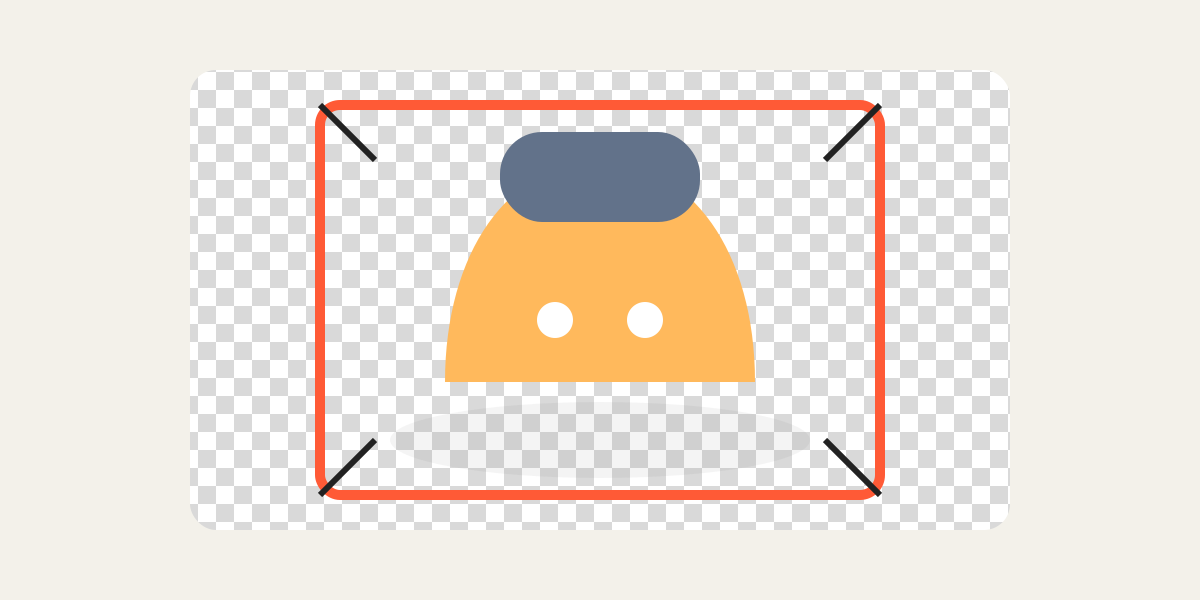
1. Understand the transparent canvas
A PNG can contain a visible object surrounded by invisible pixels. The file dimensions describe the full canvas, not only the visible object. Two logos can therefore have the same pixel size but appear very different because one contains more transparent padding.
Before cropping, decide whether the padding is intentional. It may provide breathing room, align several assets, or prevent a shadow from being clipped.
2. Inspect the real object boundary
View the image over a checkerboard or contrasting background so that transparent areas are obvious. Look for soft shadows, semi-transparent hair, glass, glow effects, and antialiased edges that extend beyond the solid object.
A crop that touches the visible edge too closely can cut these subtle pixels and create a harsh outline.
3. Define consistent padding
For a logo set, product catalog, or sticker pack, choose a repeatable amount of space around the visible object. Match the optical margin rather than relying only on the mathematical center. Asymmetric logos may need different left and right padding to appear balanced.
Use one reference layer and compare the apparent size of each object. Different shapes can use the same canvas while occupying slightly different percentages of it.
4. Avoid unintended background changes
Confirm that the workflow keeps transparency rather than replacing it with white, black, or another color. A transparent image may look correct on a white editor background while actually containing a solid fill.
After export, open the file over both a dark and light background. This exposes unwanted rectangles, edge halos, and color contamination.
5. Watch for fringe and halo artifacts
Cutout images can contain pale or dark edge pixels left from the original background. Cropping does not create these artifacts, but a tighter composition can make them more noticeable. Inspect at 100% and on the background where the asset will be used.
If the halo is part of the source, it requires masking or edge cleanup in an image editor rather than a crop adjustment.
6. Test the final asset
Verify the exported width, height, transparency, and padding in the target application. Check how the asset aligns next to other icons or products and whether responsive layouts resize it as expected.
Retain the original high-resolution PNG. Repeatedly resizing and re-exporting a small asset can reduce edge quality.
Frequently asked questions
Does cropping remove transparency?
A proper PNG workflow can preserve it, but you should verify the exported file over a contrasting background.
How much transparent padding should I keep?
Keep enough for shadows and visual breathing room, then apply a consistent rule across related assets.
Why does a white halo appear around my cutout?
The source may contain edge pixels from a previous background. That requires masking or edge cleanup, not only cropping.
Overlay image crop editor
Upload your original and edited photos, lower the top image opacity, then align facial features or fixed background points. Every exported image uses the same crop ratio and pixel dimensions.
Start cropping