Cropping basics
Image Crop Online: A Practical Guide to Better Framing
Online cropping is not just removing the edges of a photograph. A good crop controls attention, preserves important detail, matches the destination format, and produces an output file that is large enough without pretending to create detail that was never present. This guide explains the full workflow and shows when Overlay Crop is more useful than a basic center-crop tool.
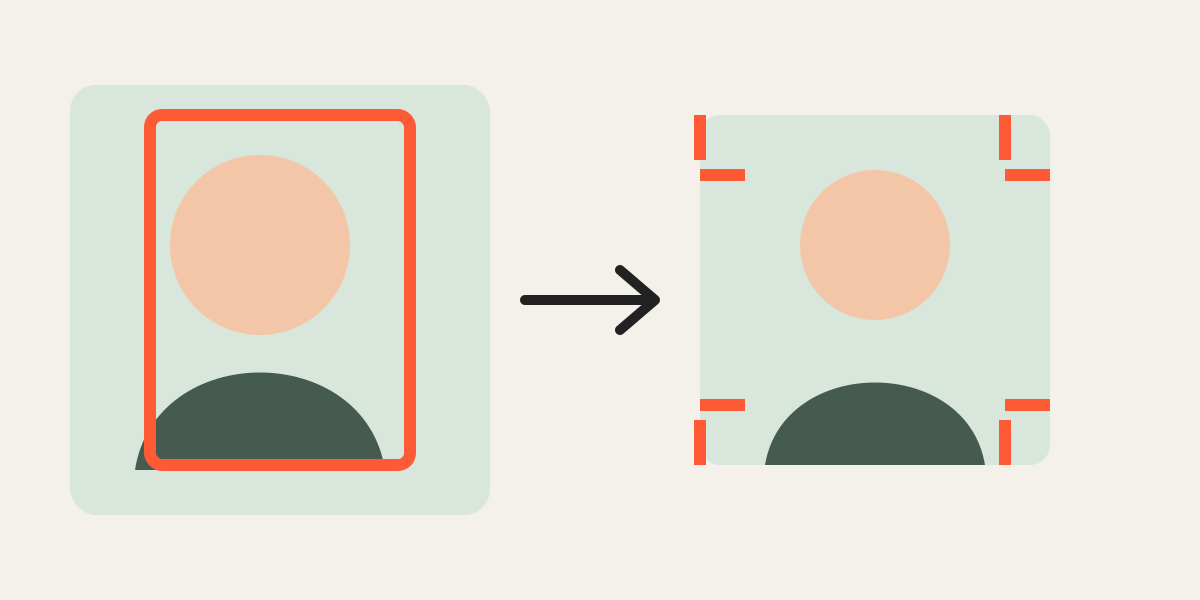
1. Decide where the image will be used
Start with the destination rather than the source file. A website hero, profile photo, marketplace listing, vertical story, and printed portrait all need different shapes. Choosing the destination first prevents repeated cropping and keeps the subject in a sensible position.
If the destination has a fixed size requirement, enter that width and height before you begin. If it only specifies a ratio, choose the ratio first and select a practical pixel size later.
| Use case | Useful ratio | Example output |
|---|---|---|
| Profile or square grid | 1:1 | 1080 × 1080 |
| Portrait post or product card | 4:5 | 1080 × 1350 |
| Traditional portrait | 3:4 | 1200 × 1600 |
| Vertical video frame | 9:16 | 1080 × 1920 |
| Wide presentation or video | 16:9 | 1920 × 1080 |
2. Separate crop ratio from resolution
Aspect ratio describes shape; resolution describes the number of pixels. A 4:5 crop can be 800 × 1000, 1080 × 1350, or 2400 × 3000. They share the same shape but not the same detail or file size.
Choose a ratio that fits the layout, then choose dimensions appropriate for the destination and the smallest source image. Large output numbers do not restore detail to a small original.
Note: A 600-pixel-wide source exported at 2400 pixels is still based on 600 pixels of real source detail.
3. Place the subject deliberately
Move the image behind the fixed crop frame until the most important subject is positioned intentionally. Leave breathing room around faces, hands, product edges, and text. Avoid cutting at joints or trimming a logo unless the destination design requires it.
Use visual anchors such as the eyes, horizon, building edges, or the center line of a product. The best crop is not always mathematically centered; it is the crop that makes the subject easiest to understand.
4. Zoom only as much as necessary
Zooming helps remove distracting background and match the subject scale across several photos. However, excessive zoom discards pixels and can make the result soft. Compare the required output width with the visible portion of the source before enlarging heavily.
On desktop, use the mouse wheel over the canvas or the zoom control. On mobile, pinch with two fingers. The numeric zoom field is useful when several layers must use comparable values.
5. Check edges, orientation, and transparency
Before exporting, inspect all four edges. Check for clipped hair, fingers, product corners, shadows, or important background context. Verify that phone photos are not rotated incorrectly and that transparent PNG areas appear as expected.
When several images are loaded, restore each layer to 100% opacity and review it alone. Transparency is excellent for alignment but can hide edge problems if left enabled.
6. Export and verify the final file
Download the selected image or export all layers as a ZIP. Open at least one downloaded file outside the editor and confirm its dimensions, orientation, sharpness, and file type. This final check catches browser download mistakes and unsuitable output dimensions before publication.
Keep the original files. Cropping creates new files and should not replace the only copy of a photograph.
- Confirm pixel dimensions in the file information panel.
- View at 100% to judge sharpness.
- Check that the subject is not clipped in the actual download.
- Rename files descriptively before publishing.
Frequently asked questions
Can I crop an image online without uploading it?
Yes. Overlay Crop processes selected images locally in the browser. The editing file is not uploaded to the Overlay Crop server.
What output size should I choose?
Use the dimensions requested by the destination. When there is no fixed requirement, choose a size close to the intended display size and avoid enlarging far beyond the source.
Why does a crop look blurry after export?
The crop may contain too few source pixels for the chosen output size, or the image may have been enlarged too aggressively.
Does cropping change the original file?
No. The browser generates a new file; the original remains unchanged.
Overlay image crop editor
Upload your original and edited photos, lower the top image opacity, then align facial features or fixed background points. Every exported image uses the same crop ratio and pixel dimensions.
Start cropping